As of May 29, 2026, ETO's in-product support experience has changed. This article covers how the new support solution works and how to access the Bonterra support portal.
How to use in-product support
After logging into ETO, look for the question mark icon in the lower-right corner of your screen. Click it to open the Resource Center, then select Contact Support.
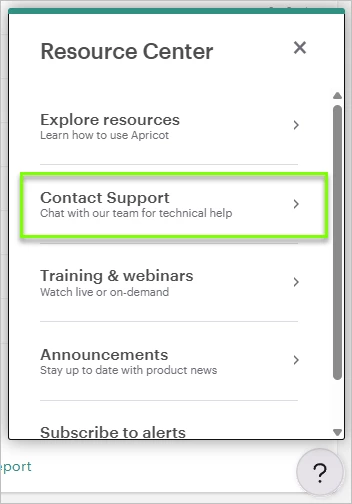
From there you’ll see two options:
- Chat with Support — type your question in plain language and the chat will respond with answers sourced from ETO's help center. It works best for how-to, navigation, and workflow questions about ETO.
- Browse Help Articles — goes directly to the ETO help center.
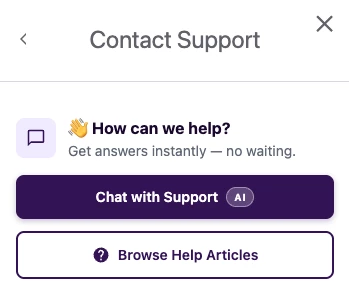
If you still need help after reviewing the chat response, you can request to connect with a support agent and the chat will connect you directly.
A new home for your support tickets
Support requests submitted through the in-product chat are now tracked in the Bonterra support portal at bonterra.zendesk.com. This is where you can view and manage any cases you create going forward.
If this is your first time accessing the portal, click Sign up and use the email address associated with your ETO account to create your login.
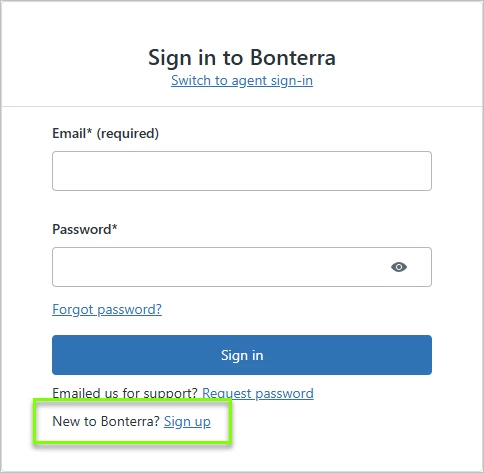
Once logged in, navigate to My Requests to view open and past tickets. From within any ticket you can review the full conversation thread, check the current status, reply to add more information, or reopen a solved ticket if your issue wasn't fully resolved.
You can also submit a support request directly from the portal by clicking Submit a Request and completing the form with details about your issue — the more context you provide, the faster the team can help.
Note: Past support history from before May 27, 2026 will soon be available in the portal as well.
Have additional questions? Reach out to Support through the in-product support solution or by emailing eto@bonterratech.com.
Comments
0 comments
Please sign in to leave a comment.